
1
Upload a workflow screenshot
Upload an app flow, document diagram, slide capture, process screenshot, or exported flowchart image.
Upload a screenshot of a workflow, app flow, slide process, process, or document diagram and rebuild it as an editable flowchart.
Supported inputs
Editable examples
Upload a screenshot, whiteboard photo, or old diagram image. ImageToEditable rebuilds the visible structure into editable shapes, labels, and connectors.
Before
Static pixels, hard to update
After
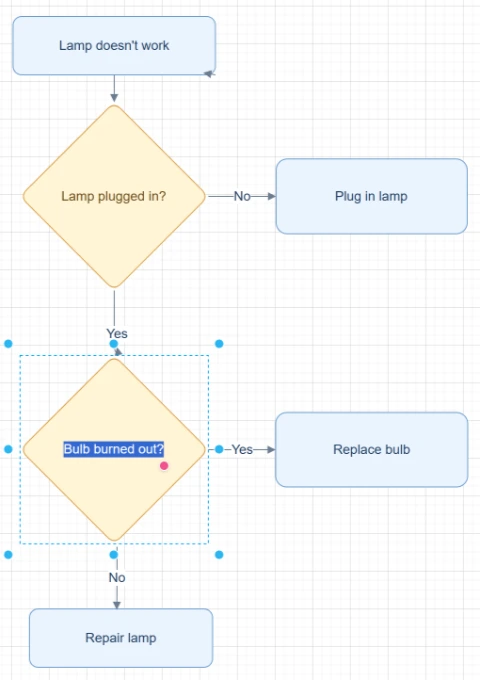
Editable objects you can review
Best for clear diagrams with visible labels, boxes, and arrows. Review blurry text or dense layouts before export.
Upload ScreenshotStart with the source file, let AI rebuild the visible structure, then review the editable result on canvas.
Upload an app flow, document diagram, slide capture, process screenshot, or exported flowchart image.
ImageToEditable reads visible labels, steps, arrows, decision nodes, and layout cues from the screenshot.
Refine the generated flowchart on canvas, correct any details, adjust the layout, and export a cleaner editable version.
Editable result
ImageToEditable rebuilds the visible diagram as editable diagram objects, so the output can be reviewed and refined instead of staying locked inside a flat image.
Review and edit visible text labels after the diagram is rebuilt.
Move, resize, add, or remove process boxes, decision nodes, and other diagram elements.
Reconnect arrows, adjust flow direction, and fix unclear branches when needed.
Clean up spacing, alignment, grouping, and reading order on the editable canvas.
Image conversion workflows
Choose the converter that matches your source image or the editable output you need.
Convert workflow screenshots into editable flowcharts for documentation, review, and reuse.
Turn visible product flows, onboarding steps, and app process screenshots into editable workflow diagrams.
Rebuild static presentation or PowerPoint process screenshots as editable flowcharts.
Convert process screenshots from docs, documents, process diagrams, and knowledge bases into reusable diagrams.
Recover support scripts, troubleshooting flows, and decision trees from screenshot captures.
Use AI to extract flowchart structure from a flat screenshot and rebuild it as editable objects on canvas.
Before you upload
A screenshot to flowchart converter turns a static workflow screenshot into editable flowchart elements. Instead of preserving the screenshot as one flat image, ImageToEditable rebuilds the visible steps, labels, arrows, and decisions on canvas.
It is useful when the original diagram file is missing, when a process only exists inside a slide or document screenshot, or when an app workflow screenshot needs to become editable documentation.
Use this page for app workflow screenshots, product flows, slide captures, process screenshots, document diagrams, or exported flowchart images. Clear text and complete connectors help the AI preserve the original process structure.
After conversion, you can adjust the generated diagram instead of manually tracing every box, label, arrow, and decision branch from the screenshot.
Screenshots are easy to share but hard to maintain. A label change, added branch, or moved step usually means redrawing the whole diagram from scratch.
ImageToEditable gives you an editable flowchart draft so you can correct text, reconnect arrows, reorganize steps, and export a cleaner version.
Use a high-resolution screenshot with readable labels, visible arrowheads, and minimal cropping. Avoid screenshots where popovers, cursors, watermarks, or compression artifacts cover important connectors.
If the screenshot contains multiple diagrams, crop to the workflow you want before uploading so the AI can focus on one flowchart.
Manual redrawing can work for one small diagram, but it is slow when you are recovering old workflows, slide diagrams, support decision trees, or product flows from screenshots.
AI conversion creates the editable starting point first, then you make targeted corrections on the canvas instead of rebuilding the entire flowchart by hand.
Results and quality
Upload a clear PNG, JPG, JPEG, or SVG diagram image. For a diagram inside a document, export or capture the relevant page as an image first.
Export availability follows the current ImageToEditable canvas export options.
Continue from the converted diagram without rebuilding the file.
Continue refining the rebuilt diagram with manual edits.
Export the finished diagram as a Draw.io, Mermaid, Excalidraw, PNG, or SVG file when available.
Check labels, shapes, arrows, and connectors before you share the result.
FAQ
Upload an app flow, document, slide, process, or workflow screenshot and start refining the rebuilt flowchart on canvas.