
1
Upload a diagram screenshot
Start with a screenshot from a document, ticket, slide deck, web page, product spec, or diagram image.
Upload a diagram screenshot from docs, tickets, slides, websites, or product specs. ImageToEditable reconstructs the visible structure as an editable Draw.io-compatible draft.
Supported inputs
Editable examples
A PNG, screenshot, or exported diagram image in Draw.io is still just pixels. ImageToEditable rebuilds the visible structure as editable boxes, labels, and connectors you can export to Draw.io.
Before
Locked pixels, labels cannot be edited
After
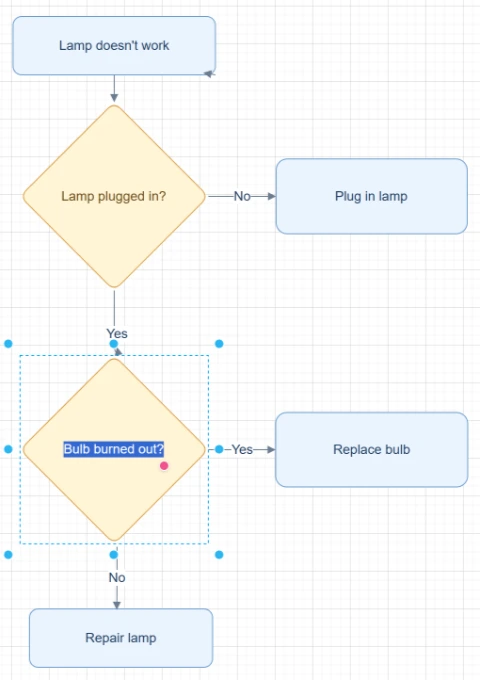
Editable boxes, labels, and connectors
Best for clear diagrams with readable labels and visible arrows. Review dense layouts before export.
Convert to Draw.ioStart with the source file, let AI rebuild the visible structure, then review the editable result on canvas.
Start with a screenshot from a document, ticket, slide deck, web page, product spec, or diagram image.
ImageToEditable detects readable labels, shapes, arrows, connectors, and layout direction from the screenshot.
Review the reconstructed draft in Modern Style, clean up labels or connectors, and export through the Draw.io-compatible path when needed.
Editable result
ImageToEditable rebuilds the visible diagram as editable diagram objects, so the output can be reviewed and refined instead of staying locked inside a flat image.
Review and edit visible text labels after the diagram is rebuilt.
Move, resize, add, or remove process boxes, decision nodes, and other diagram elements.
Reconnect arrows, adjust flow direction, and fix unclear branches when needed.
Clean up spacing, alignment, grouping, and reading order on the editable canvas.
Image conversion workflows
Choose the converter that matches your source image or the editable output you need.
Reconstruct process diagrams copied from Confluence, Notion, wikis, or exported documentation.
Convert workflow screenshots attached to Jira, Linear, GitHub issues, or support tickets into editable drafts.
Create editable diagram drafts from presentation screenshots when the original source file is missing.
Capture a diagram from a web page or help center article and rebuild it for maintenance.
Turn diagram screenshots from product requirements, design specs, or process notes into diagrams your team can edit.
Before you upload
Screenshot to Draw.io conversion helps when a diagram only exists inside a document, ticket, slide deck, web page, or product spec screenshot.
ImageToEditable reads the visible screenshot and reconstructs the diagram as editable text, shapes, arrows, connectors, and layout on the canvas.
Inserting a screenshot into Draw.io keeps the full diagram as one flat image. You can move or resize the screenshot, but the boxes, labels, and arrows inside it remain locked.
ImageToEditable is designed for a different workflow: it reconstructs the visible diagram as editable objects so you can update the flow instead of tracing it manually.
The best screenshots show one diagram at a time with readable text, clear arrowheads, visible connector lines, and enough contrast between shapes and the background.
Screenshots with tiny labels, cropped branches, blurred text, or low contrast can still produce a useful draft, but they usually need manual review and cleanup.
Results and quality
Upload a clear PNG, JPG, JPEG, or SVG diagram image. For a diagram inside a document, export or capture the relevant page as an image first.
Export availability follows the current ImageToEditable canvas export options.
Continue from the converted diagram without rebuilding the file.
Continue refining the rebuilt diagram with manual edits.
Export the finished diagram as a Draw.io, Mermaid, Excalidraw, PNG, or SVG file when available.
Check labels, shapes, arrows, and connectors before you share the result.
FAQ
Upload a diagram screenshot and turn the visible flow into an editable Draw.io-compatible draft you can review, refine, and export.