
1
Upload a JPG or JPEG diagram
Start with a JPG/JPEG flowchart image, email attachment, phone photo, archived diagram, or compressed screenshot.
Upload a JPG or JPEG diagram image, email attachment, phone photo, or compressed screenshot. ImageToEditable reconstructs the visible structure as an editable Draw.io-compatible draft.
Supported inputs
Editable examples
A PNG, screenshot, or exported diagram image in Draw.io is still just pixels. ImageToEditable rebuilds the visible structure as editable boxes, labels, and connectors you can export to Draw.io.
Before
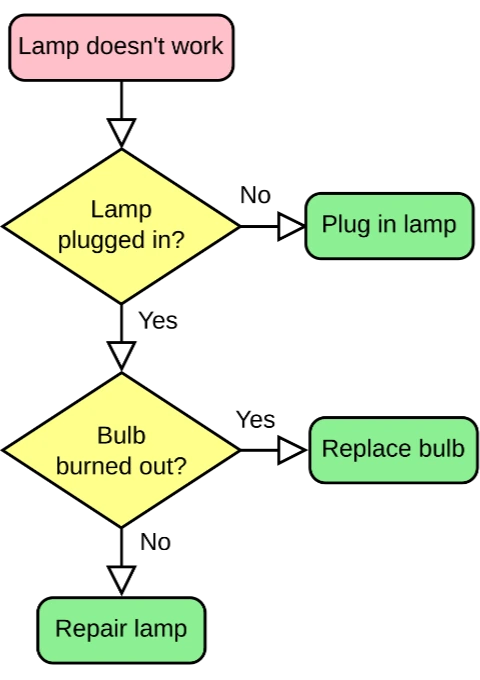
Locked pixels, labels cannot be edited
After
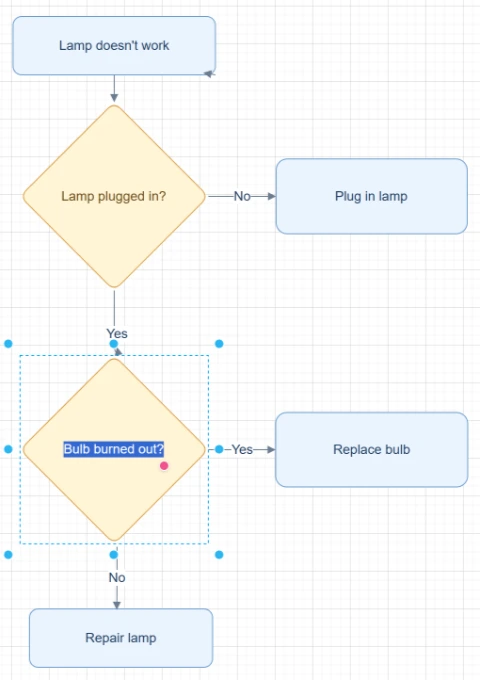
Editable boxes, labels, and connectors
Best for clear diagrams with readable labels and visible arrows. Review dense layouts before export.
Convert to Draw.ioStart with the source file, let AI rebuild the visible structure, then review the editable result on canvas.
Start with a JPG/JPEG flowchart image, email attachment, phone photo, archived diagram, or compressed screenshot.
ImageToEditable detects visible labels, shapes, arrows, connector direction, and layout from the compressed image.
Open the reconstructed result in Modern Style, review compression-sensitive details, and export through the Draw.io-compatible workflow when available.
Editable result
ImageToEditable rebuilds the visible diagram as editable diagram objects, so the output can be reviewed and refined instead of staying locked inside a flat image.
Review and edit visible text labels after the diagram is rebuilt.
Move, resize, add, or remove process boxes, decision nodes, and other diagram elements.
Reconnect arrows, adjust flow direction, and fix unclear branches when needed.
Clean up spacing, alignment, grouping, and reading order on the editable canvas.
Image conversion workflows
Choose the converter that matches your source image or the editable output you need.
Reconstruct JPG and JPEG diagrams shared through email or chat when the editable source is unavailable.
Convert straight-on phone photos of whiteboards, printed flowcharts, or meeting notes into editable drafts.
Recover diagram structure from JPEG screenshots compressed by messaging, email, or documentation tools.
Use an old JPEG diagram as the starting point for a new editable Draw.io-compatible workflow.
Turn a shared JPG flowchart into a diagram your team can update instead of redrawing from scratch.
Before you upload
JPG to Draw.io conversion is useful when a diagram arrives as an email attachment, phone photo, archived JPEG, or compressed screenshot.
ImageToEditable analyzes the visible image and reconstructs the diagram as editable labels, shapes, arrows, connectors, and layout.
JPG and JPEG files can blur text edges, soften connector lines, and add compression artifacts around arrows, labels, and shape boundaries.
For that reason, ImageToEditable creates an editable draft that should be reviewed before export, especially when the source image is small, blurry, angled, or heavily compressed.
Straight-on photos and clear screenshots with good lighting, readable labels, visible arrowheads, and distinct connector lines work best.
Crop the image to one diagram when possible, and avoid angled photos, shadows, glare, cropped branches, or images where connector direction is hard to see.
Results and quality
Upload a clear PNG, JPG, JPEG, or SVG diagram image. For a diagram inside a document, export or capture the relevant page as an image first.
Export availability follows the current ImageToEditable canvas export options.
Continue from the converted diagram without rebuilding the file.
Continue refining the rebuilt diagram with manual edits.
Export the finished diagram as a Draw.io, Mermaid, Excalidraw, PNG, or SVG file when available.
Check labels, shapes, arrows, and connectors before you share the result.
FAQ
Upload a JPG or JPEG diagram and turn the visible flow into an editable Draw.io-compatible draft you can review, refine, and export.