
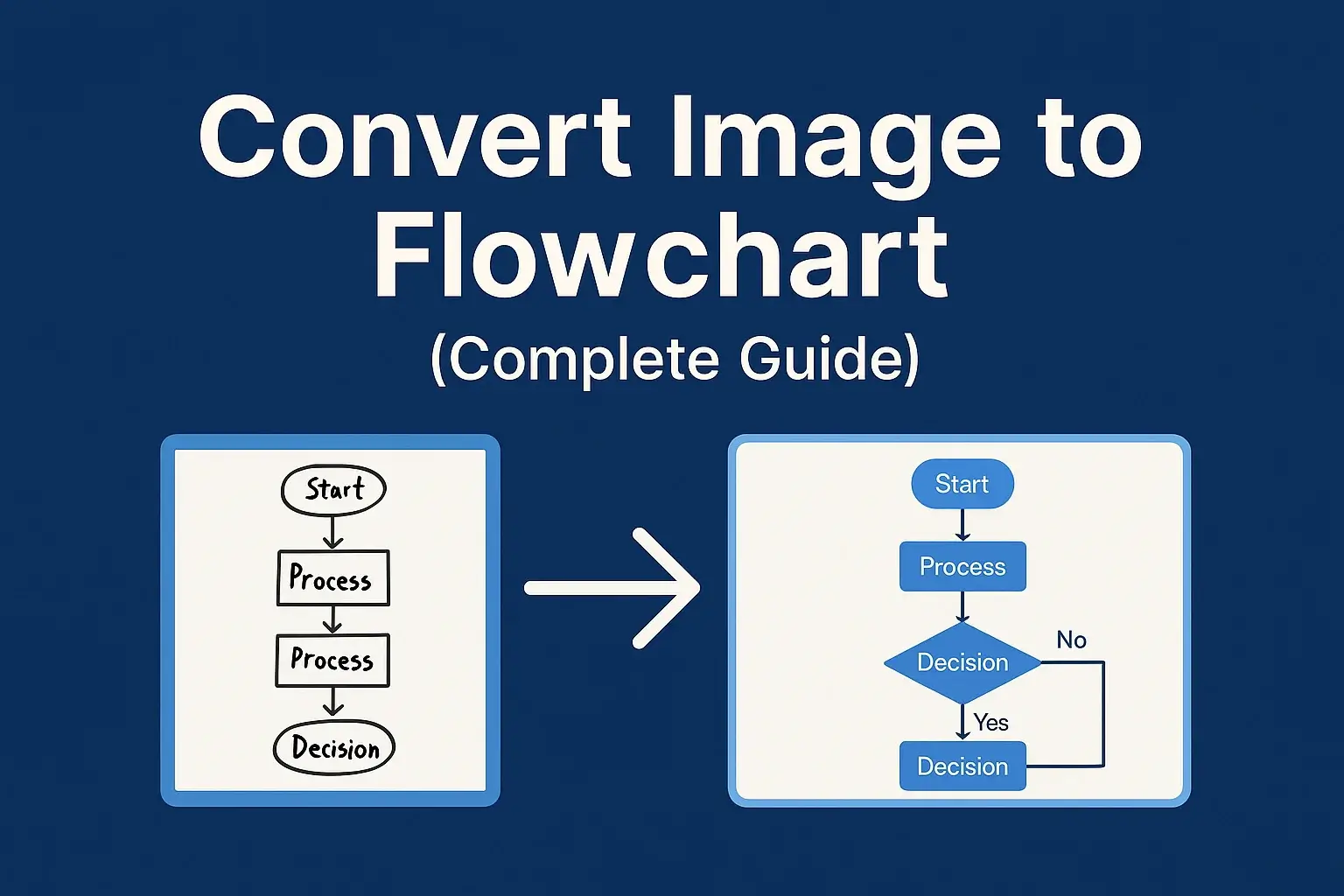
How to Convert a Diagram Image into an Editable Flowchart
A diagram image is useful until a label changes, a branch needs to move, or the original source file is gone. Instead of tracing the image manually, you can use it to create a new editable flowchart draft.
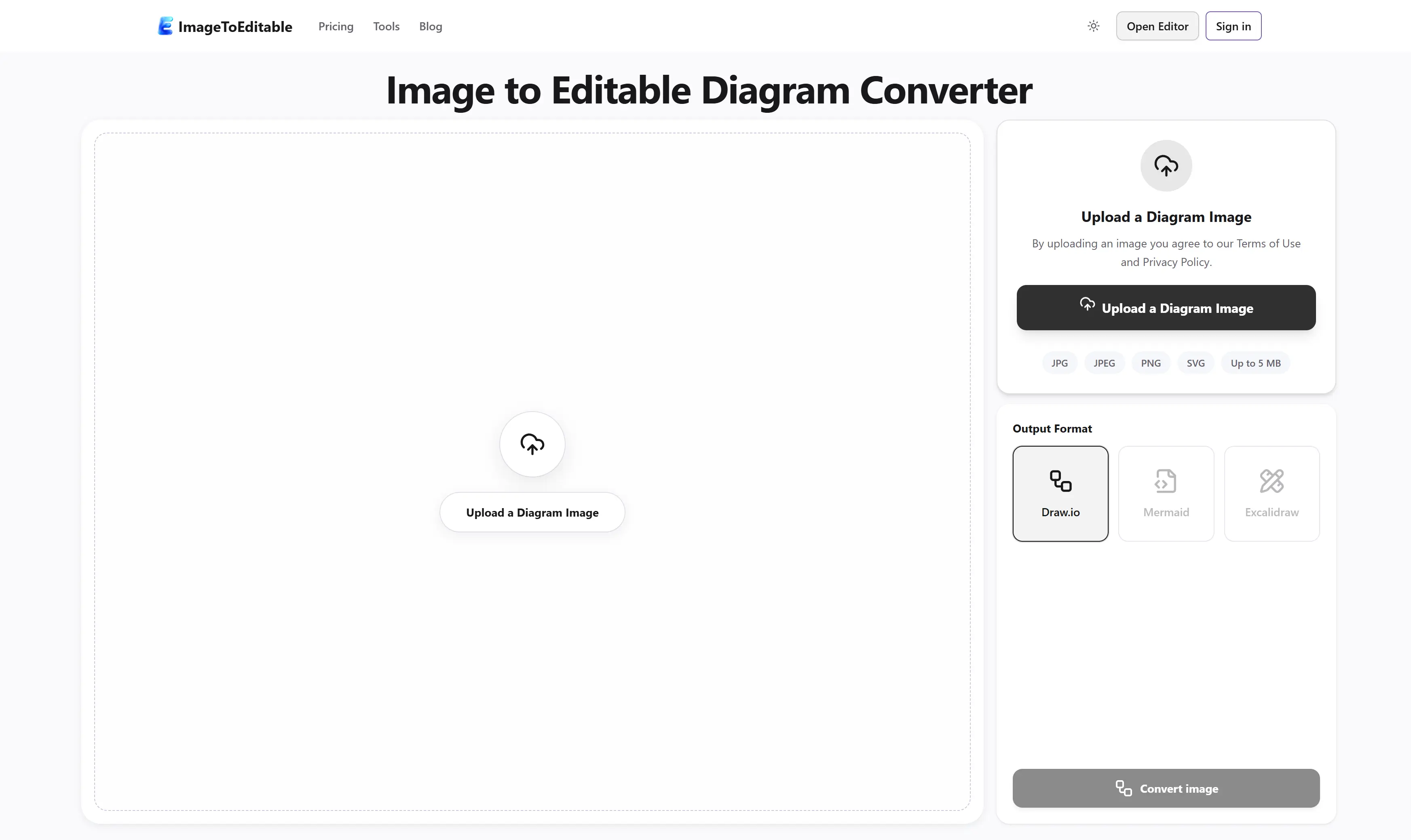
ImageToEditable accepts clear JPG, JPEG, PNG, and SVG diagram images. It rebuilds the visible labels, shapes, arrows, connectors, and approximate layout for review in a Draw.io, Mermaid, or Excalidraw workflow.
Start with a clear source image
Use the clearest copy you have: a flowchart screenshot, an exported diagram image, a scanned sketch, or a straight-on whiteboard photo. Crop the upload to one diagram when possible, and keep labels, arrowheads, and connectors visible.
For photos, reduce glare and perspective distortion before uploading. For screenshots, avoid tiny text and overlapping UI panels.
Choose the output that fits the next step
- Draw.io is a good fit when you want structured shapes and connectors in a diagram editor.
- Mermaid is useful when the result belongs in Markdown, a repository, or technical documentation.
- Excalidraw is useful for a sketch-style diagram that a team can continue to shape visually.
The output is a newly rebuilt draft. It does not restore the hidden source metadata or the original editable file behind a flat image.
Review before you export
AI can reconstruct the visible structure quickly, but images are imperfect sources. Check labels, connector direction, branch wording, and spacing before you share the result. Dense diagrams, blurry text, cropped arrows, handwriting, and low contrast may need manual cleanup.
Once the draft looks right, export the appropriate editable format or a PNG/SVG version for sharing.
Try it with your diagram
Upload a diagram image to create an editable draft, or open a focused converter for Draw.io, Mermaid, or Excalidraw.
Author
